Airworthiness Directives (Preview)
BetterPlane helps you review airworthiness directives (ADs) that may apply to your aircraft. It finds matches from your aircraft details and checks your logbooks for AD mentions.
Use this guide to review those findings with your mechanic and build your aircraft’s Applicable list. You can see which ADs still need review and examine the available logbook records. The list does not yet tell you whether required work is complete or when it is due.
1. See what BetterPlane found
Section titled “1. See what BetterPlane found”- Open your aircraft.
- Tap ADs.
- Tap Found.
Found contains matches that still need an applicability decision. The number beside ADs in the aircraft navigation counts these matches, not overdue maintenance. An empty list does not mean that no ADs apply. If an expected AD is missing, search by number. If Logbook mentions to identify appears, review those references before completing your review.
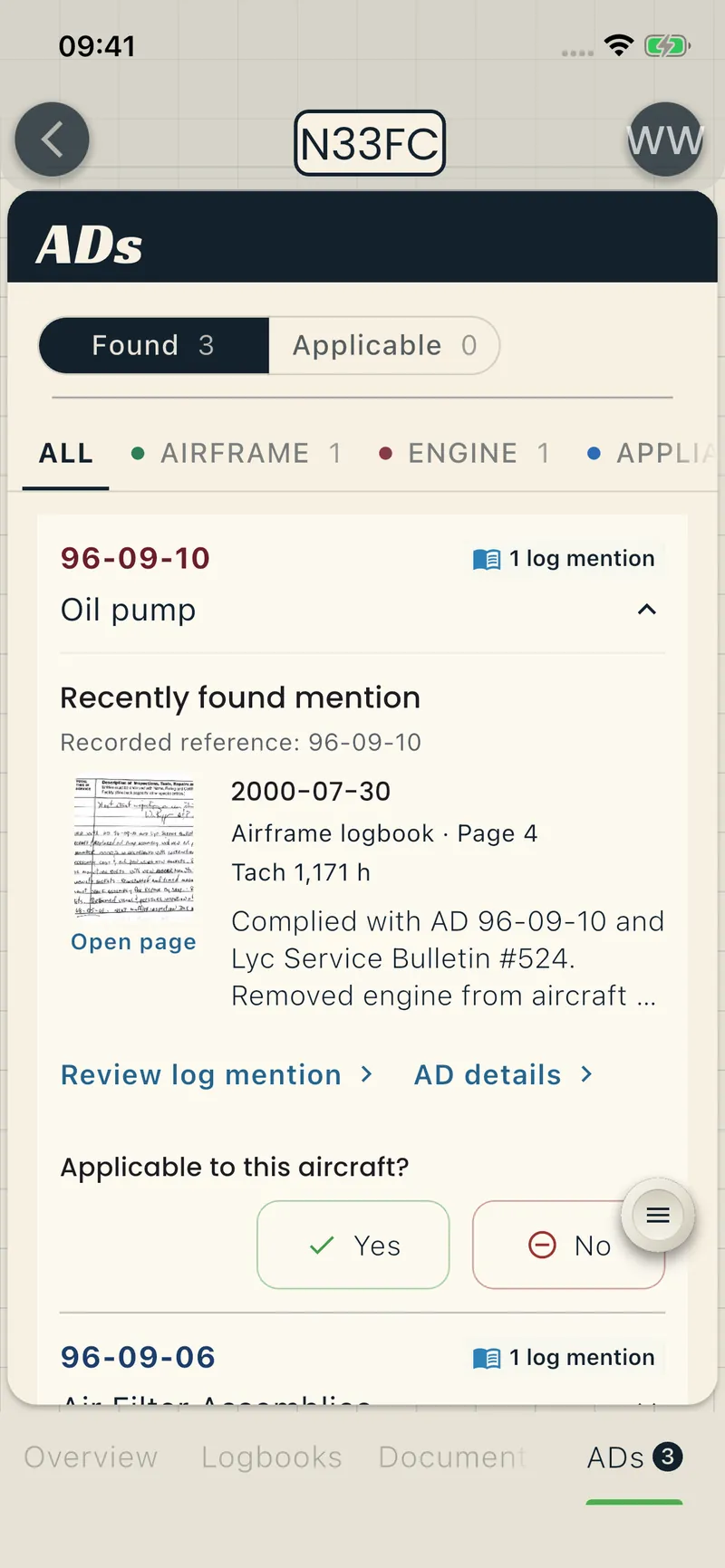
Start with an AD you want to review. A logbook icon and mention count identify ADs with matching logbook entries. For a long list, you can focus on one source, such as the engine.
2. Review the directive and your records
Section titled “2. Review the directive and your records”For each match, check two things: whether the directive covers your aircraft and what your records say about it.
Check whether the AD covers your aircraft
Section titled “Check whether the AD covers your aircraft”- Tap the AD row to expand it.
- Tap AD details.
- Tap Open AD in FAA DRS to view the official FAA record.
- Check the applicability requirements against your aircraft and its components with your mechanic.
A matching aircraft type alone does not establish applicability. Serial numbers, years, or configurations can exclude an aircraft.
Check the available logbook records
Section titled “Check the available logbook records”If the AD has log mentions, review the original records before drawing conclusions about completed work.
- In the expanded AD row, tap Review log mention to see the matching logbook entries.
- Tap Open source page to compare an entry with the original logbook page.
If the entry text is shortened, tap Read full entry. The action includes a count when there are multiple mentions.
Recently found mention does not necessarily show the most recent maintenance work. Check your maintenance records for evidence of compliance even if no log mentions appear.
3. Keep the ADs that apply to your aircraft
Section titled “3. Keep the ADs that apply to your aircraft”In the expanded Found row, Applicable to this aircraft? asks whether the directive applies, not whether the work is complete.
- If it applies, tap Yes. The AD moves to Applicable.
- If it does not apply, tap No. Record the reason so you can review that decision later.
- If you are unsure, leave it in Found until you review it with your mechanic.
If these buttons are missing, check your hangar role.
Continue through the remaining matches as you review them. You can change a decision if you made a mistake or have new information.
4. Review what still needs attention
Section titled “4. Review what still needs attention”After your review, Applicable holds the ADs you confirmed apply to this aircraft. You can expand these rows to review their logbook mentions and AD details again. Found holds the matches that still need a decision. Your rejected matches remain in Not applicable, inside Found, with their reasons.
Use the Applicable list and original records when you discuss outstanding work with your mechanic. Confirm what work is complete and whether any requirement repeats.
The AD list does not record completed work or calculate when recurring work is due. Marking an AD applicable does not create a reminder.
Confirm the due date or hours with your mechanic. For a maintenance reminder, create an aircraft alert.
Detailed steps and corrections
Section titled “Detailed steps and corrections”Find an AD by number
Section titled “Find an AD by number”Use Search when you know an AD number that you want to check for this aircraft.
- Tap Search beside Found and Applicable.
- Enter the AD number.
- Select a suggested number, or tap Look up for the number you entered.
- Tap View AD details to review the directive.
If your review confirms applicability, tap Add to Applicable. This records applicability, not completed work. If the AD is already in Found or Applicable, use the result’s action to review the existing list. Your query and results remain when you switch segments.
Identify an unmatched logbook mention
Section titled “Identify an unmatched logbook mention”Some extracted references do not identify an AD that BetterPlane can find. Check the original record before you select a directive.
- Tap Logbook mentions to identify.
- Select a reference.
- Tap Open logbook page to check the original record.
- Return to the reference review.
- Enter the correct AD number.
- Select a suggestion, or tap Look up.
- Review the directive through View AD details.
- If it is the referenced directive, tap Link to this AD.
Linking identifies the logbook mention. It does not confirm applicability or completed work. Review applicability separately when prompted. If you cannot identify the directive, leave the reference for later review.
Marking an AD not applicable
Section titled “Marking an AD not applicable”- In the expanded Found row, tap No under Applicable to this aircraft?
- Select the reason.
- Add a note if needed.
- Tap Mark not applicable.
| Reason | When to use it |
|---|---|
| Wrong match | The AD does not cover your aircraft make, model, or engine. |
| Not applicable | The AD covers the type, but a serial number, year, or configuration excludes this aircraft. |
To review rejected ADs, tap Not applicable under Found. Tap the row to open AD details.
Returning an AD to Found
Section titled “Returning an AD to Found”For ADs reviewed through Found, use these steps:
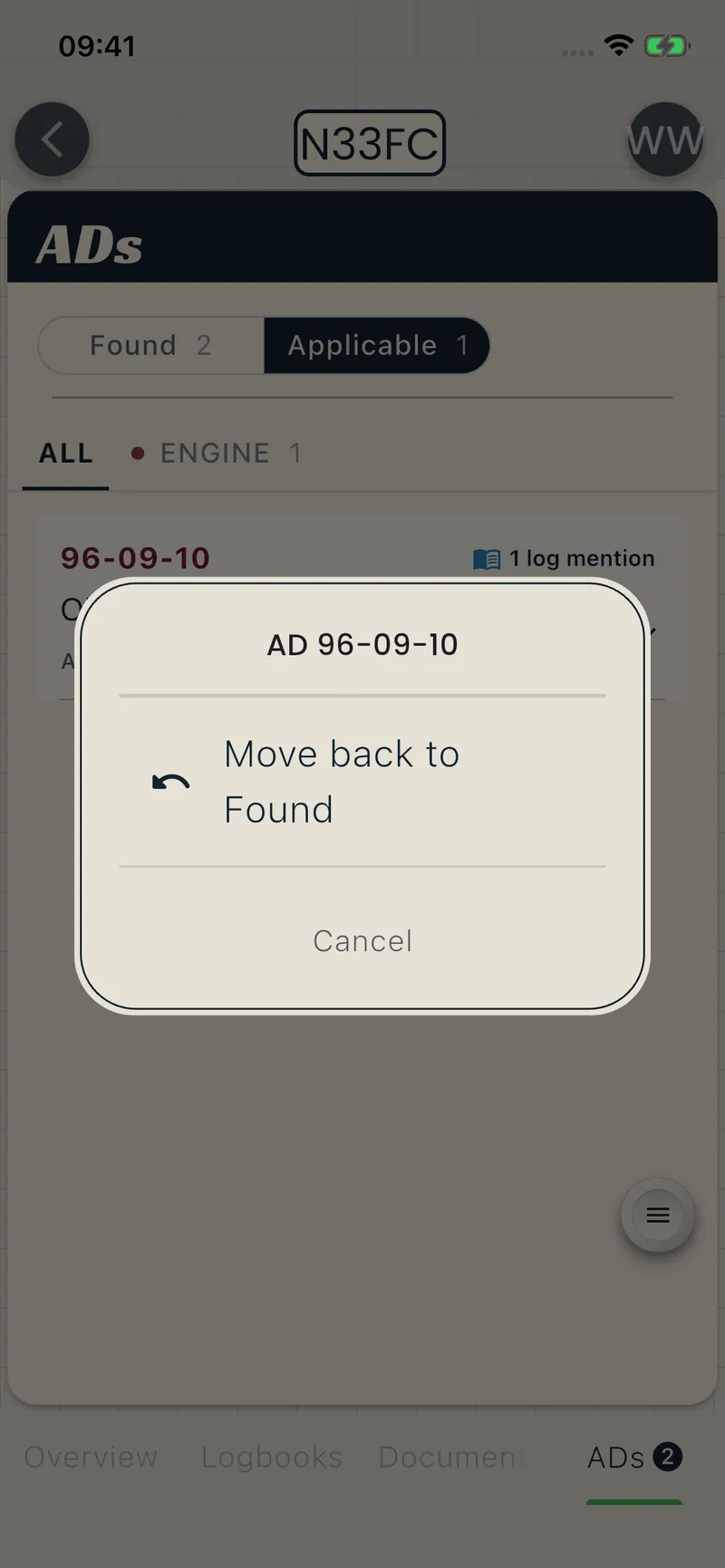
- Find the AD in Applicable or the Not applicable view.
- Press and hold the AD row.
- Tap Move back to Found.
- Open Found.
- If the Not applicable filter is still selected, tap All.
BetterPlane removes the earlier rejection reason and note when you return a rejected AD to Found.
For an AD you added manually, press and hold its Applicable row. Select Remove from Applicable. Manual additions do not move to Found. You can add the AD again through Search.
Filtering by source
Section titled “Filtering by source”You can filter Found and Applicable by source, such as airframe or engine.
- Tap a source label, such as Engine.
- Review the matching rows.
- Tap All to remove the filter.
Who can make decisions
Section titled “Who can make decisions”You need the Officer or Manager hangar role to change applicability decisions.
Members can read AD details and logbook mentions but cannot change applicability decisions.