Fuel, Oil & Trends
You can record fuel and oil as part of each hours entry. BetterPlane uses those numbers to build fuel burn and oil consumption trends you can review and share. This page also covers standalone oil top-offs and multi-engine setup.
Recording fuel
Section titled “Recording fuel”The fuel field appears once the aircraft has a time source (a tach or hobbs component).
Enter fuel in gallons. One field covers the whole aircraft regardless of engine count.
- Open Log Hours (see Tracking Hours).
- Enter your hours.
- In the Consumables section, enter gallons burned in the Fuel Used field.
- Tap Review (or Save if there are no linked components), then Save.
Leave the field empty or enter 0 to skip.
To fix the fuel on a flight you already saved, see Editing or deleting a flight. To add a past flight that was never logged, tap Log Past Flight below the flight list (see Past Flights).
Recording oil with a flight
Section titled “Recording oil with a flight”- Enter quarts added to each engine.
- Leave a field empty or at 0 if you did not add oil to that engine.
- Tap Add additive to record additive type and quantity (optional).
- Tap Review (or Save if there are no linked components).
Oil additives
Section titled “Oil additives”Record additive details (CamGuard or AvBlend) with each oil entry.
- Tap Add additive below the oil field.
- Select the additive type from the dropdown.
- Enter the quantity in ounces.
Standalone oil top-offs
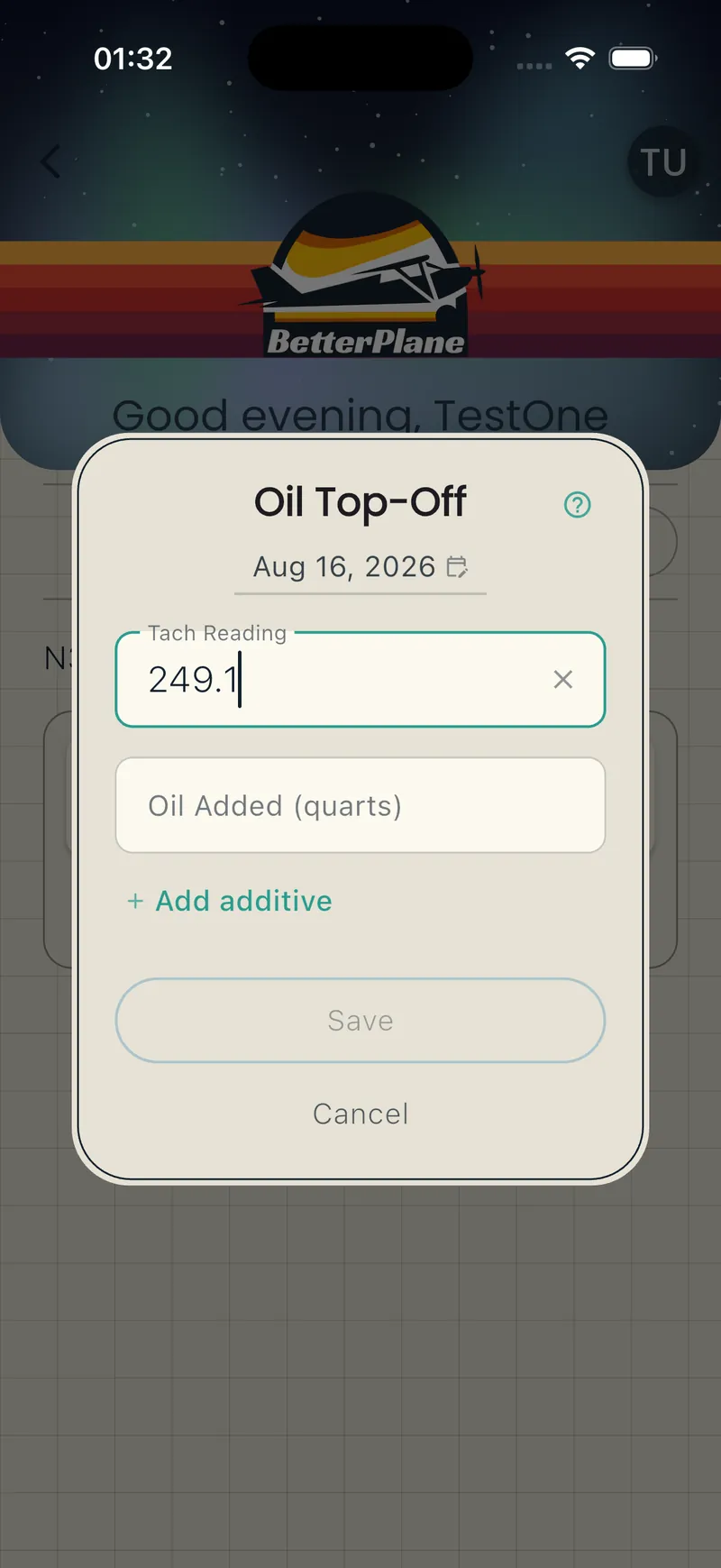
Section titled “Standalone oil top-offs”To record oil added between flights without logging hours:
Quick way: Tap the Oil pill on the hangar card.
From the aircraft: Open the Flight Data detail view, select the Oil Log tab, and tap Oil Top-Off.
- Enter the current reading in the field labeled with your component name. The field pre-fills with the last recorded value.
- Enter quarts added per engine.
- Add additive details if needed.
- Tap Save.
Multi-engine setup
Section titled “Multi-engine setup”All setup happens from the aircraft overview. Tap the three-dot menu and choose Add Component.
- Add a tach for each engine (for example, “Left Tach”, “Right Tach”).
- Add your engines and name them (for example, “Left Engine”, “Right Engine”).
- Link each engine to its tach: tap an engine tile, tap Edit, choose the matching tach from the Time Source dropdown, then tap Save.
After setup, you see one oil field per engine when recording.
Tap an engine tile on the overview to see the last oil entry.
Single-engine aircraft
Section titled “Single-engine aircraft”We recommend the same setup for a single: add a tach and an engine component, and link the engine to the tach. The engine component keeps its own oil history and enables compression records (see Compression Checks).
Without an engine component, oil tracking still works with a single field at the aircraft level.
Editing or deleting an oil record
Section titled “Editing or deleting an oil record”You need the Officer or Manager role.
- Open the Flight Data detail view and tap the Oil Log tab.
- Tap the oil record. Its details open.
- Tap the pencil icon.
- Change the Tach reading, Quarts Added, or the date.
- Tap Save.
If the new reading does not line up with a later entry, a warning appears under the field. The warning does not block Save.
To delete the record:
- Tap the pencil icon.
- Tap the trash icon.
- Type “delete” to confirm, then tap Delete.
This cannot be undone.
Common questions
Section titled “Common questions”Q: The fuel field does not appear. A: The fuel field requires a time source. Add a tach or hobbs component from the aircraft overview first.
Q: I forgot to record fuel for a past flight. A: Open the flight record from the Flight Log tab and add the fuel value. You can also add a past flight from the Flight Log tab if the flight itself was never logged.
Q: I added oil to one engine but not the other. A: Leave the other engine’s field empty or at zero. Only non-zero entries are recorded.
Q: What oil additives are supported? A: CamGuard and AvBlend are pre-loaded.
Trends and charts
Section titled “Trends and charts”- Open your aircraft.
- Tap the Flight Data card on the overview screen.
- The detail view has three tabs: Trends, Flight Log, and Oil Log.
Tap any point on a chart for details about that flight.
Switching oil rate units
Section titled “Switching oil rate units”Tap the oil rate value (on the card or in the detail view) to toggle between qt/hr and hr/qt.
Exporting data
Section titled “Exporting data”- Open the Flight Data detail view.
- Tap the Flight Log or Oil Log tab.
- Tap the share icon to export as CSV.
How rates are calculated
Section titled “How rates are calculated”- Fuel burn = fuel used divided by hours flown, per flight.
- Oil rate = quarts added divided by the hours flown since the previous oil entry for that engine. You need at least two oil entries on the same engine before the first rate appears.