Tracking Hours
Log your hours after each flight to keep your meters current. A single entry updates the tach, hobbs, engine, and any other linked component, and your hours-based maintenance alerts track along with them.
Opening Log Hours
Section titled “Opening Log Hours”There are two ways to open Log Hours. Both go to the same screen.
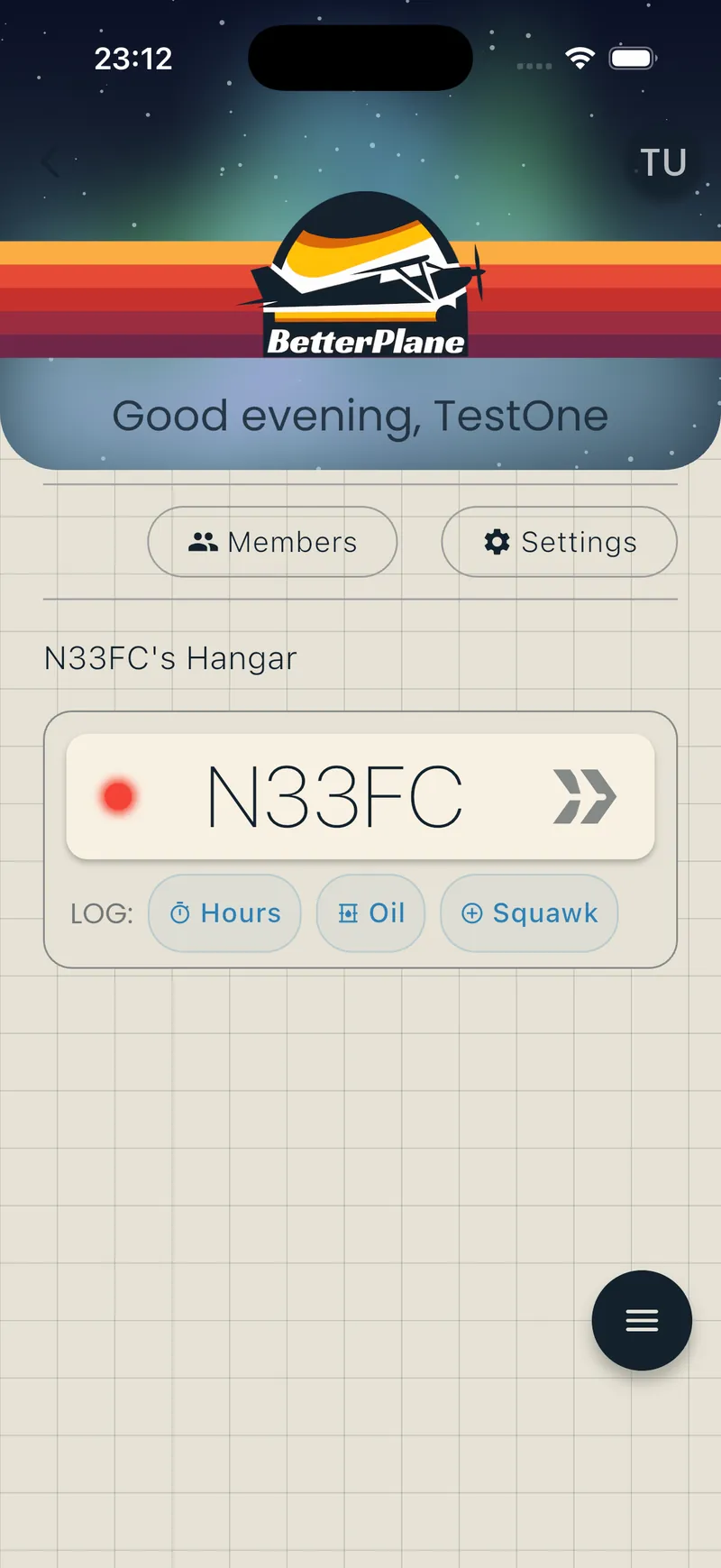
Quick way: On the hangar screen, tap the Hours pill on the aircraft card.
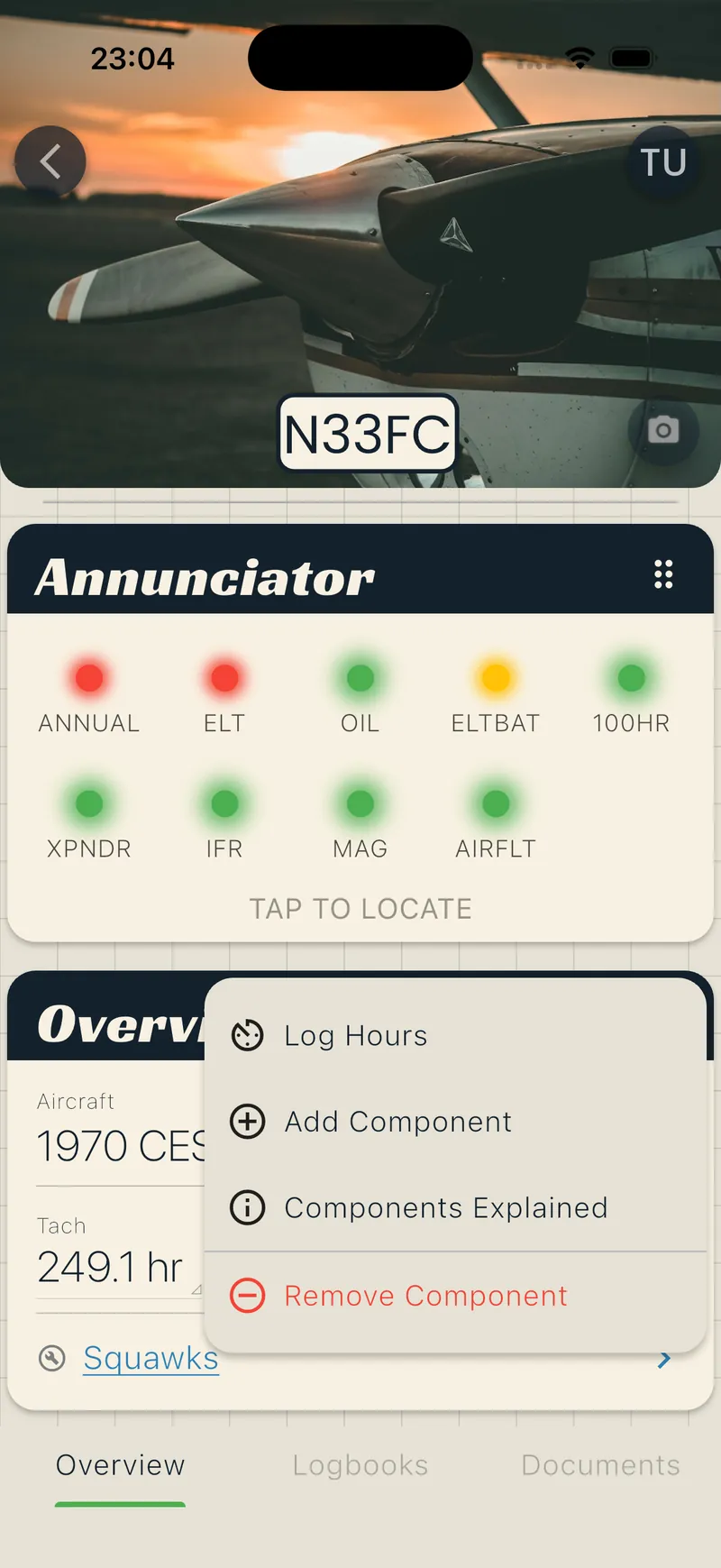
From the aircraft overview: Tap the three-dot menu on the Overview card, then tap Log Hours.
If the aircraft has no tach or hobbs, a dialog appears. Tap Add Component to add one first.
Input modes
Section titled “Input modes”There are two ways to tell BetterPlane about a flight, and both end with the same result. Pick whichever number you have in front of you:
- Hours Delta: you know how long you flew (“1.2 hours today”). BetterPlane adds it to the current reading.
- New Reading: you are looking at the meter (“the tach now shows 250.3”). BetterPlane works out the hours flown from the difference.
Switch between them with the toggle.
Hours Delta (default)
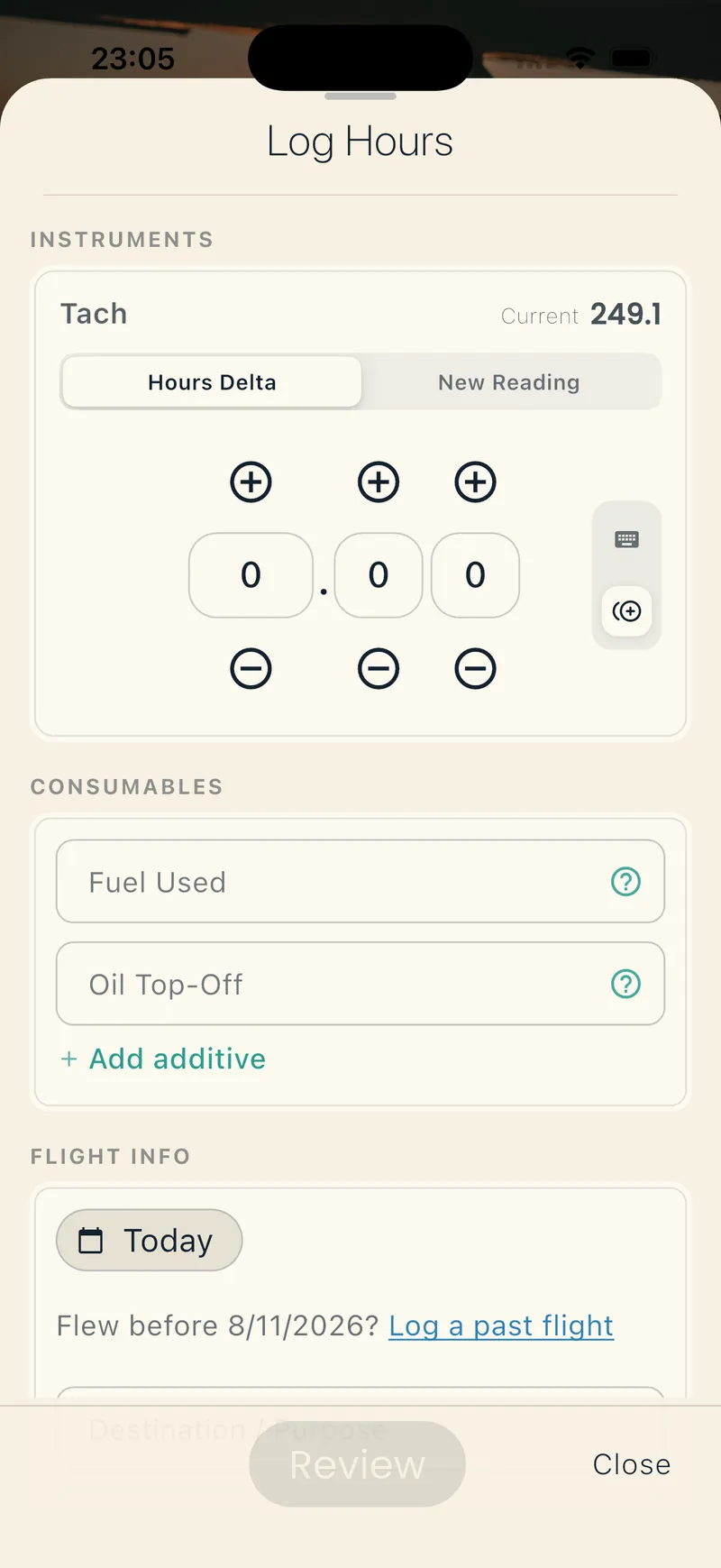
Section titled “Hours Delta (default)”- Enter the hours flown (for example,
1.20for one hour and twelve minutes of tach time). Use the keyboard or the dial (see Entry methods). - Tap Review to verify the new reading, or Save if there are no linked components.
New Reading
Section titled “New Reading”- Tap New Reading in the mode toggle.
- Enter the meter value exactly as it reads (for example,
250.3). - Tap Review (or Save if there are no linked components).
Entry methods
Section titled “Entry methods”Either mode takes its number two ways. Tap the keyboard icon or the dial icon to switch between them.
Text field
Section titled “Text field”Type the number, with up to two decimal places.
The dial has three columns (hours, tenths, hundredths), like the drums on the meter itself. Use it to match the meter digit by digit.
- Tap the dial icon to switch to dial entry.
- Tap + or - on each column. For example, tap hours + once and tenths + five times for 1.50.
- Tap the reset icon to return the dial to its starting value: zero in Hours Delta mode, the current reading in New Reading mode.
Confirming linked components
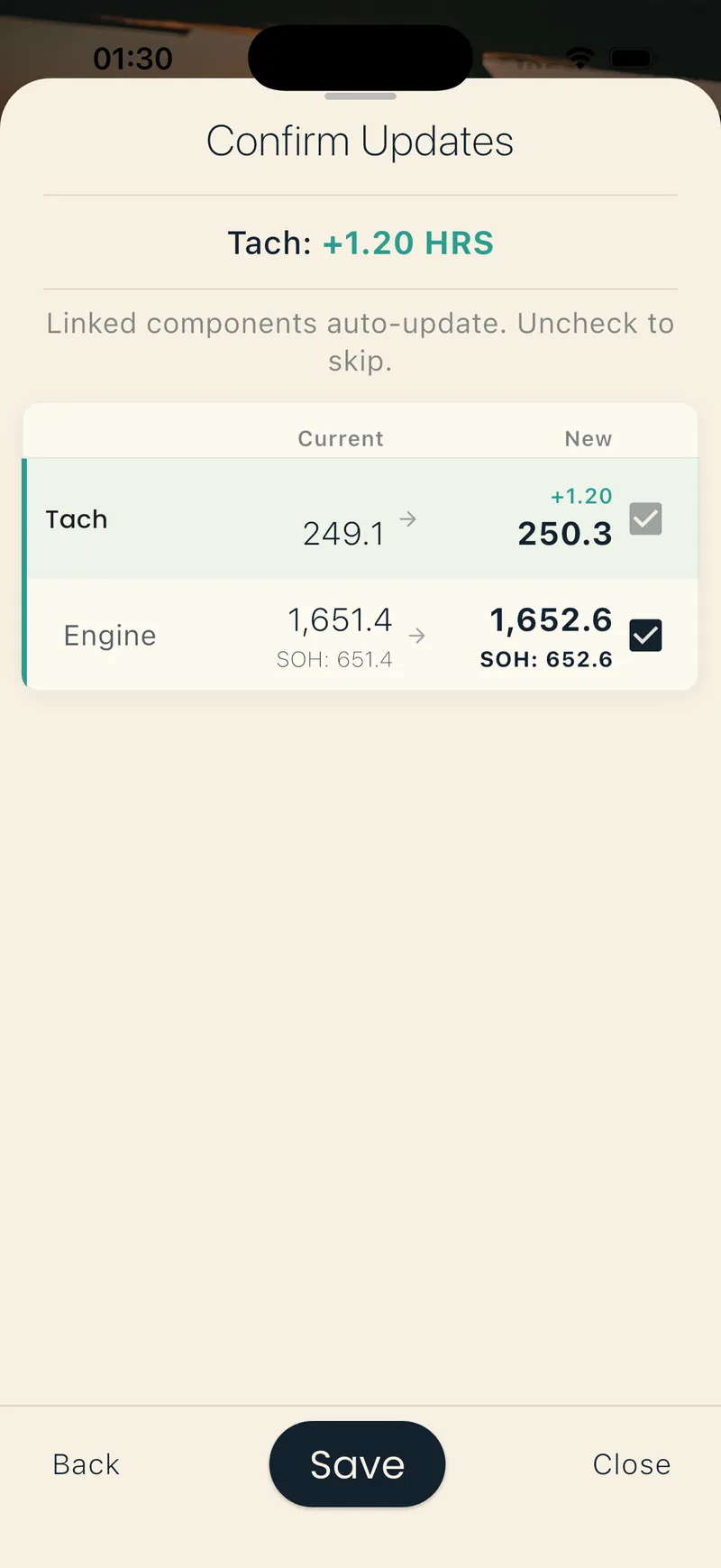
Section titled “Confirming linked components”After you tap Review, you see every component that will receive the hours update. The tach or hobbs you are updating is always checked and cannot be unchecked. Each linked component below it has a checkbox. Uncheck one to skip it for this entry. Tap Save to apply.
Unlinked components warning
Section titled “Unlinked components warning”If an active component is not linked to a tach or hobbs, a banner appears near the top of the Log Hours screen. It reads, for example, 3 components not tracked. Tap the banner to expand it. The expanded banner lists the unlinked components.
An unlinked component does not receive hours updates when you save an entry. To fix it, link the component to a tach or hobbs.
- Open the aircraft and find the Overview card.
- Tap the component.
- Tap Edit.
- Choose a meter in the Time Source dropdown.
- Tap Save.
See Adding Components for more about the Time Source dropdown.
Tap Don’t show again in the expanded banner to dismiss it for this aircraft. It reappears if you link or unlink a component afterward.
Flight details
Section titled “Flight details”Optional fields below the hours input:
- Fuel Used: enter gallons burned (see Fuel, Oil & Trends).
- Oil Top-Off: enter quarts added per engine (see Fuel, Oil & Trends).
- Destination / Purpose: enter an airport code or description (such as “KACT” or “Local”).
- Notes: enter free text (such as “Pattern work” or “$100 hamburger with Ken”).
- Date: defaults to today. Tap to pick a different date.
Multi-component aircraft
Section titled “Multi-component aircraft”Multi-engine aircraft show one oil field per engine. Log Hours shows one reading card for each tach or hobbs on the aircraft.
Logging a past flight
Section titled “Logging a past flight”To log a past flight, tap the hint below the date field. The hint appears once the aircraft has at least one recorded entry. See Past Flights for details.
Editing or deleting a flight
Section titled “Editing or deleting a flight”You need the Officer or Manager role.
- Open the Flight Data detail view and tap the Flight Log tab.
- Tap the flight. Its details open.
- Tap the pencil icon.
- Change the date, a meter’s Out HRS or In HRS, Fuel Used, Destination, or Notes.
- Tap Save.
The flight’s hours come from the primary meter’s Out and In readings, so edit the readings and the hours follow. The date can only move between the neighboring flights, which keeps the flight order intact. Edits never change your aircraft’s current meter totals.
If you leave with unsaved edits, BetterPlane asks Discard changes? Tap Keep Editing to stay, or Discard to leave.
Deleting a flight
Section titled “Deleting a flight”- Open the flight and tap the pencil icon.
- Tap the trash icon.
- Type “delete” to confirm, then tap Delete.
This removes the flight record. Oil entries recorded with the flight are kept. Delete them separately from the Oil Log if they were also entered in error.
Related pages
Section titled “Related pages”- Fuel, Oil & Trends: recording fuel and oil, trends, and CSV export
- Adding Components: adding tach, hobbs, and other components
- Past Flights: logging historical flights