Searching Logbook Entries
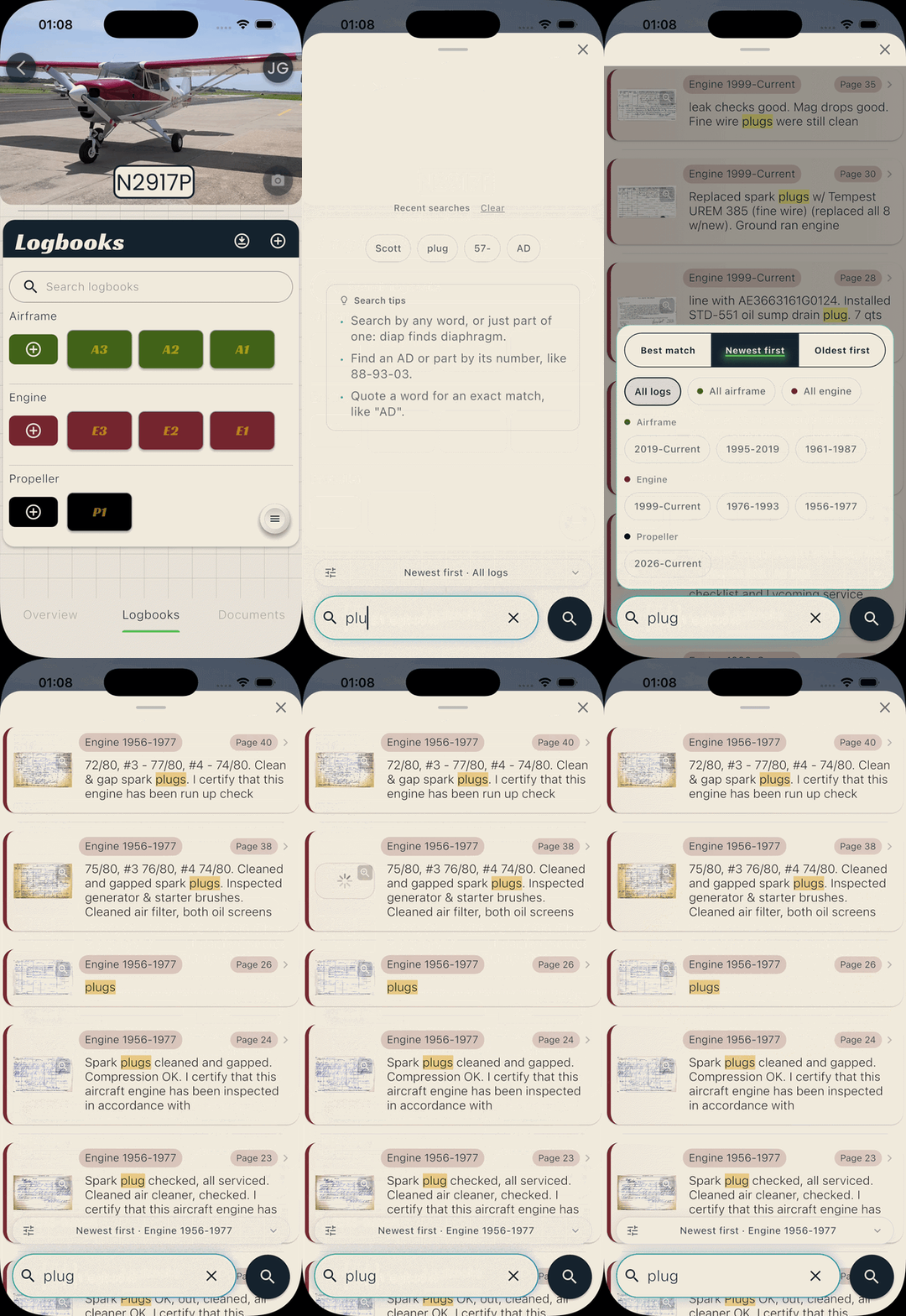
Search looks through the text AirWrenchAI extracts from your scanned pages, so you can find an entry (the last mag work, say) without paging through years of records. A logbook has to be scanned before its entries show up, and you can search across all logbooks or within one.
Search all logbooks
Section titled “Search all logbooks”- Tap the Logbooks tab.
- Tap the Search logbooks field.
Search within one logbook
Section titled “Search within one logbook”- Open a logbook.
- Tap the search icon in the app bar.
Enter a query
Section titled “Enter a query”- Type a search term.
- Tap the submit button.
Wrap a word in quotes for an exact match (for example, "compression").
Sort results
Section titled “Sort results”- Newest first (default): by entry date, newest at top.
- Oldest first: by entry date, oldest at top.
- Best match: by relevance to the query.
Filter by logbook
Section titled “Filter by logbook”- All logs: every logbook (default).
- Type filters (for example, “All airframe”): all logbooks of that type.
- Volume filters (for example, “Airframe 2020-Current”): one specific logbook.
View a result in its logbook
Section titled “View a result in its logbook”- Tap a result card.
- Tap the confirm button in the View in Logbook dialog.
- Tap back to return to search results.